
Cache Management
Search, invalidate, and download cache entries from the Shipfox dashboard
The cache management page in the Shipfox dashboard gives you visibility into your cache and control over its contents. You can find it under Cache in the left navigation.
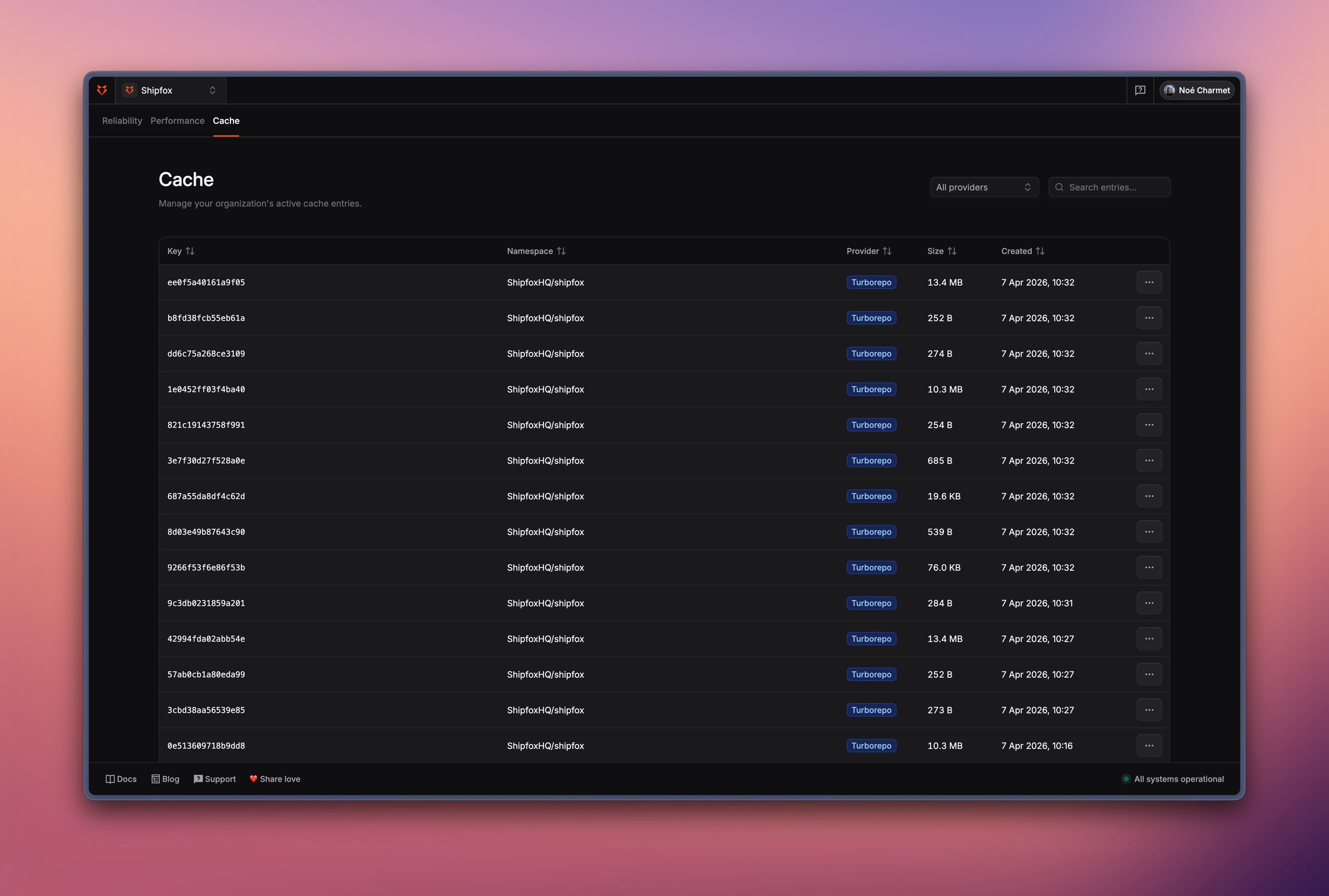
Searching cache entries
The search interface lets you browse and filter all entries currently stored in your cache. You can search by cache key to quickly find a specific entry, or filter by tool (GitHub Actions, Turborepo, sccache, etc.) to see what a particular integration has stored.
This is useful for:
- Confirming that a cache entry was created after a workflow run
- Inspecting which keys are taking up space
- Diagnosing unexpected cache misses by checking what is actually stored
Each entry shows its key, size, creation date, and last accessed date.
Invalidating cache entries
You can delete one or more cache entries directly from the dashboard. Select the entries you want to remove and click Invalidate.
This is useful when:
- A cache entry is corrupted and causing workflow failures
- You have changed a dependency or build configuration and want to force a clean rebuild
- You are debugging cache behavior and want to test a cold-cache run
Invalidating an entry does not affect running jobs. The next job that looks up that key will get a cache miss and recompute the result, which is then stored as a fresh entry.
Invalidation is permanent. There is no way to restore a deleted entry. If you are unsure, download the entry first before removing it.
Downloading cache entries
You can download the raw contents of any cache entry to your local machine. Click the download icon next to an entry to retrieve the archive.
This is useful when:
- You want to inspect what was cached (e.g. verify that the right build artifacts were stored)
- You are trying to reproduce a CI failure locally using the exact cached state
- You are debugging a cache hit that produces unexpected behavior
Downloaded entries are compressed archives. Shipfox uses zstd by default, so you can extract them with:
tar --use-compress-program=unzstd -xf <filename>In some cases, when a job runs inside a container that does not have zstd installed, Shipfox falls back to gzip. You can identify this situation by a warning in the Initialize containers log group on your runner. For gzip archives, use:
tar -xzf <filename>